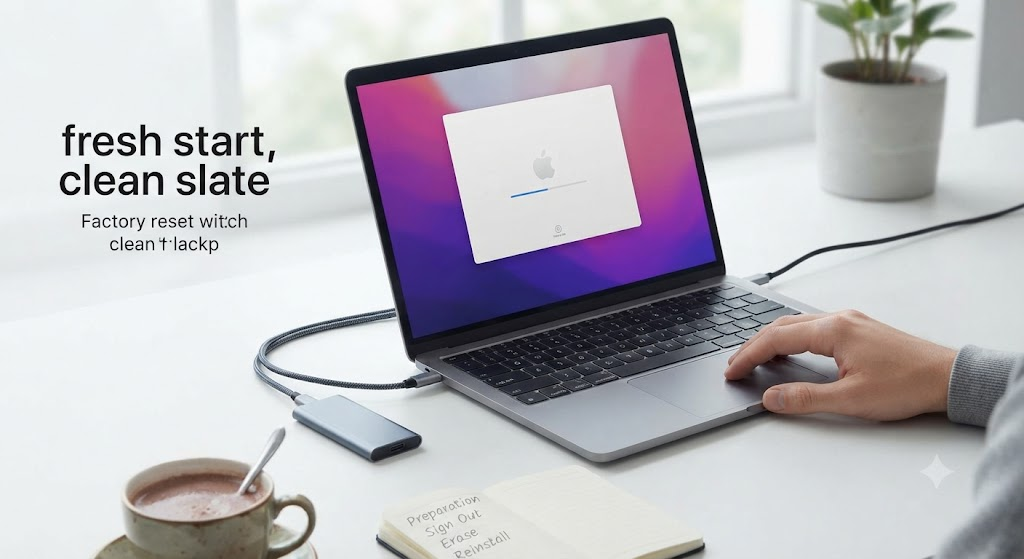
Complete Detailing Table
| Step / Phase | Action Required | Key Details to Remember |
| Preparation | Back up your data | Save important files to an external drive or cloud storage. |
| Sign Out | Deauthorize accounts | Sign out of Apple ID, iCloud, iMessage, and authorization apps. |
| Data Erasure | Erase all content and settings | Use the Erase Assistant tool on modern macOS or Erase Mac in Disk Utility. |
| Reinstallation | Reinstall macOS | Download and install a fresh, clean copy of the operating system. |
Have you ever felt like your computer is holding onto too much junk? Maybe it runs as slow as a turtle on hot sand. Or perhaps you want to sell your trusty laptop to a new friend. Whatever your reason, knowing How to Factory Reset MacBook is a superpower. It gives your computer a clean slate. It wipes away old files, pesky bugs, and forgotten downloads in one fell swoop. Think of it as a magical moving day for your hard drive. Everything gets packed up and tossed out so you can start fresh. We will walk through this together like two pals chatting over a cup of cocoa. You do not need a degree in rocket science to pull this off. Just grab your laptop, plug it into the wall, and get ready for a totally refreshed machine.
Why You Might Need a Fresh Start
Every computer gets tired after a few years of hard work. You download games, school projects, and funny cat videos until the storage light blinks red. Learning how to factory reset macbook helps you reclaim that missing space. It fixes weird glitches that make your screen freeze during a fun movie. When your apps start crashing for no good reason, a deep clean is often the best medicine. It clears out hidden cache files that bog down your system memory. You will feel the speed difference the second you boot it back up. It runs cool and quiet again, just like the day you unboxed it. Giving your device a clean wipe breathes brand new life into old hardware.
Step One: Back Up Your Precious Files
Before you touch any erase buttons, we need to save your treasures. A factory wipe deletes everything stored on your local drive permanently. You do not want to lose your favorite photos or important homework documents by accident. Plug in an external hard drive or turn on your cloud backup service. Drag all your important folders into a safe digital vault. Double-check your desktop just to make sure nothing important is hiding there. Taking five extra minutes here saves you from a massive headache later. Think of this step as packing your suitcase before you move to a new house. Once your digital life is safe and sound elsewhere, you are officially ready for the next big step.
Step Two: Sign Out of Your Apple ID
Your computer loves you, and it wants to stay connected to your personal accounts forever. But if you are wiping it clean, you need to break up with it first. Go to your system settings and sign out of your main Apple account. This tells the machine that you are stepping away as the primary captain. Do the same for your music library, your messaging apps, and any store logins. Doing this ensures the security lock lets a new user log in later without trouble. It is a tiny task that prevents giant digital roadblocks down the road. Take a deep breath and tap that sign-out button with total confidence. You are clearing your digital fingerprints so the machine can start a brand new chapter.
Step Three: Use the Erase Assistant Tool
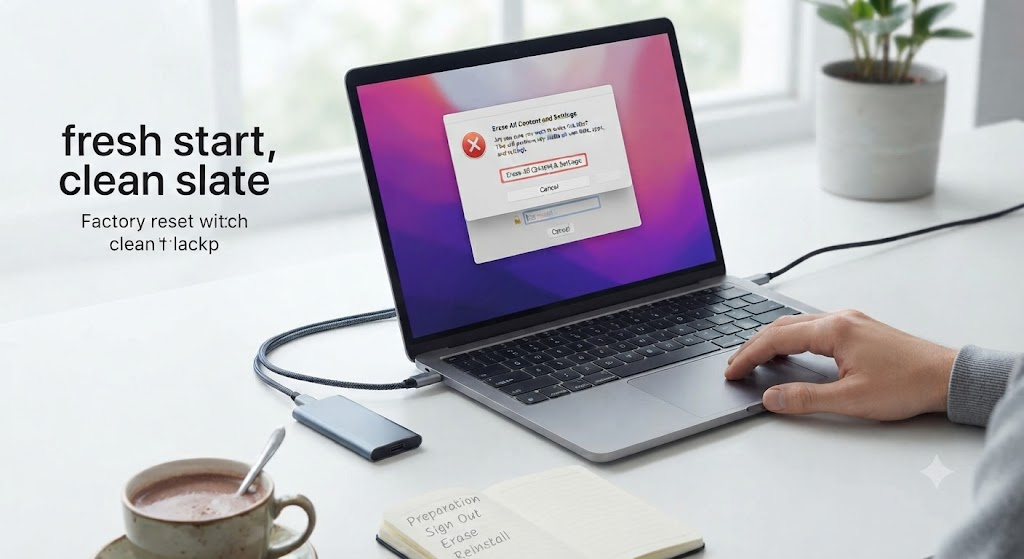
Apple made cleaning your machine much easier in newer software versions. You no longer have to jump through complicated hoops or guess the right buttons. Search for the Erase All Content and Settings feature in your main menu. This magical button handles the heavy lifting of wiping your personal data securely. It scrubs the internal drive clean while keeping the operating system safe and sound. You will see a couple of warning prompts asking if you are really sure. Type in your computer password to prove you are the real boss. Sit back and watch the progress bar do its quiet work for a few minutes. Your screen might go blank or restart a time or two while it finishes the job.
Step Four: Opening the Recovery Menu
If your computer uses an older software version, the process looks a little different. You will need to restart your machine and hold down special startup keys. For older Intel chips, you press down command and the letter R together. For modern Apple silicon chips, you press and hold the power button until options appear. This special action opens the secret recovery room hidden deep inside your computer. It is like an emergency toolkit that runs separate from your normal desktop environment. From here, you can talk directly to the core disk management tools. It feels a bit like entering a backstage pass area of a famous concert. Just follow the friendly prompts on the dark screen and stay calm.
Step Five: Wiping the Hard Drive Clean
Once you are inside the recovery window, look for the disk utility option. This tool acts like a digital broom that sweeps every dusty corner clean. Select your main internal hard drive from the list on the left side. Click the erase button at the top and pick the standard map format. Give your clean drive a nice simple name like Macintosh HD if you want. Hit the final confirmation button and let the machinery scrub the slate completely bare. It takes just a minute or two to finish shredding the old data blocks. When the checkmark appears, you have successfully emptied the entire storage bay. You are now staring at a completely blank canvas ready for new paint.
Step Six: Reinstalling a Fresh Operating System
A naked hard drive cannot run games or surf the web by itself. It needs a fresh, healthy copy of the operating system installed right back onto it. Head back to the main recovery menu and select the reinstall software choice. Make sure your Wi-Fi is connected so it can download the files from the internet. The progress bar might take a little while depending on your connection speed. Go grab a quick snack or stretch your legs while the download finishes up. The computer will install the files automatically without needing your help. It prepares a brand new user profile setup screen for the very next boot. You are watching a phoenix rise right out of the digital ashes.
Step Seven: The Welcome Setup Screen
Your screen will finally light up with a cheerful hello animation in many different languages. This is the exact same screen you saw the day you bought it. If you plan to keep the laptop, go ahead and type in your name. Create a fresh password that is secure yet easy for you to remember. Connect to your home Wi-Fi network and sign back into your personal profile. If you are gifting the machine to a family member, stop right here. Let them take over at this exact welcome screen to set up their own profile. Handing over a pristine machine feels amazing and wonderfully thoughtful. You have officially completed the entire journey from a sluggish mess to a sparkling new start.
Keeping Your Mac Healthy Over Time
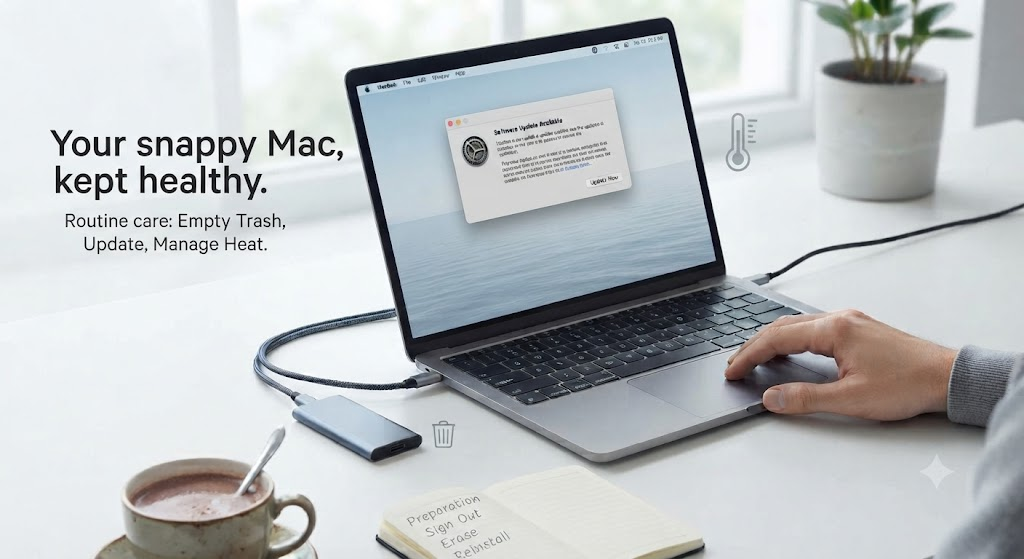
Now that your machine runs as fast as lightning, let us keep it that way. Avoid filling up your storage to the absolute brim with random internet downloads. Empty your trash bin every once in a while to clear out lingering junk. Run your software updates whenever a friendly notification pops up on your screen. Treat your battery with kindness by not leaving it plugged into extreme heat. A little bit of routine care goes a very long way in the tech world. You will enjoy smooth performance for years before needing another deep clean. Enjoy your wonderfully snappy laptop and all the fun tasks you can conquer today.
Conclusion
Taking the time to refresh your laptop is one of the best habits you can build. It fixes stubborn bugs, speeds up daily tasks, and prepares old gear for a second life. You just learned how to factory reset macbook like an absolute pro without any stress. Share this guide with a friend who might be struggling with a slow computer. Drop a comment below telling us how much faster your machine runs right now!
Frequently Asked Questions
Will a factory reset delete my important files?
Yes, wiping your machine removes all local files, apps, and photos stored on the hard drive. Always make a complete external backup before starting the process.
How long does the entire reset process take?
The whole wipe and reinstallation usually takes around thirty to sixty minutes. The exact time depends on your internet speed and hardware model.
Do I need an internet connection to reset my Mac?
Yes, downloading a fresh copy of the operating system from Apple servers requires an active Wi-Fi or ethernet connection.
Can I factory reset my Mac without a password?
You need the administrator password or Apple ID credentials associated with the machine to authorize the erase and security tools.
What should I do if my Mac freezes during the reset?
Force restart the machine by holding down the power button, enter the recovery menu again, and restart the disk erase process.
Does erasing my Mac remove the operating system?
Using the standard Erase Assistant keeps the macOS system intact, while Disk Utility can completely wipe the partition if you choose to reinstall from scratch.
About the Author